Step 1: Click Register to become an appointing entity.
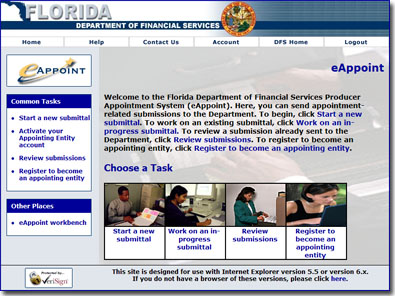
From the eAppiont Home page, click the
Register to become an appointing entity link from the Common Tasks menu on the left side of the page, or, from the Task Selection table at the bottom of the page.
On clicking the Register to become an appointing entity link, the first page of the Appointing Entity Registration Wizard will display.
The eAppoint Home Page
Step 2: Click Next.
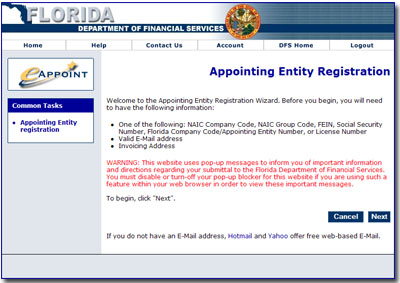
The first page of the Appointing Entity Registration Wizard is shown to the left.
Before you begin, be sure to have the following information handy:
One of the following: NAIC Company Code, NAIC Group Code, FEIN, Social Security Number, Florida Company Code/Appointing Entity Number, or License Number
Valid Email address (If you do not have an existing Email account and need to find an Email service provider, eAppoint provides links to free Web-based Email services on this page.)
Invoicing Address
The Appointing Entity Registration Wizard: Page One
Once you have the above information available, click the Next button.
